Tips for macOS Users
macOS is very similar to Linux in terms of command line usage.
Logging In♯
The browser-based Open OnDemand portal is the easiest way to get started with Picotte.
Drexel network required
You must be on the Drexel network to access Picotte. If you are not on the Drexel network, you cannot connect. There are two ways to get connected:
- On campus: Be physically on campus and connect to an active Drexel Ethernet jack or DragonFly3 Wi-Fi.
- Off campus: Connect to the Drexel VPN.
For command-line access, use SSH as described below.
SSH through VS Code♯
VS Code is useful for remote software development and SSH access to Picotte.
Visual Studio Code[1] offers an extension pack allowing you to control a remote device using SSH. It offers an integrated terminal and lets the user take advantage of VS Code's features like:
- Installing/using extensions
- Language support
- Easy exploration and file management
- Convenient viewing of files like images/PDFs
- Jupyter notebook front-end.
Please see: Visual Studio Code setup
Terminal♯
ssh -X myusername@picottelogin.urcf.drexel.edu
Graphical Display♯
For applications that use remote graphical display over SSH, XQuartz[2] must be installed. Open OnDemand provides browser access to its JupyterLab and MATLAB apps without X11. Once XQuartz is installed, display forwarding should be automatic. If display forwarding still fails, you can either:
- force forwarding with
"
ssh -X myusername@picottelogin.urcf.drexel.edu", or - add the following lines to
/Users/myname/.ssh/configon your Mac -- that is "X eleven" in the parameter name:
ForwardX11 yes
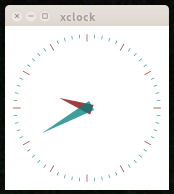
To test, log in to Picotte with display forwarding as above, and then run a trivial program:
xclock
You should see a small analog clock app window appear.